

Docker changed how software is built, shipped, and run by packaging applications into lightweight, portable containers. If you have ever heard “but it works on my machine,” Docker is the tool that finally makes that phrase obsolete. This beginner’s guide explains what containers are and how to use them practically.
What Is Docker and Why It Matters
Docker is a platform for running applications inside containers — isolated, self-contained units that bundle your code together with everything it needs to run: the runtime, libraries, and system tools. Because a container carries its own environment, it behaves identically on your laptop, a teammate’s machine, and a production server.
Before Docker, deploying software meant carefully configuring each server to match the developer’s environment — a fragile, error-prone process. Docker replaces that with a repeatable package you build once and run anywhere.
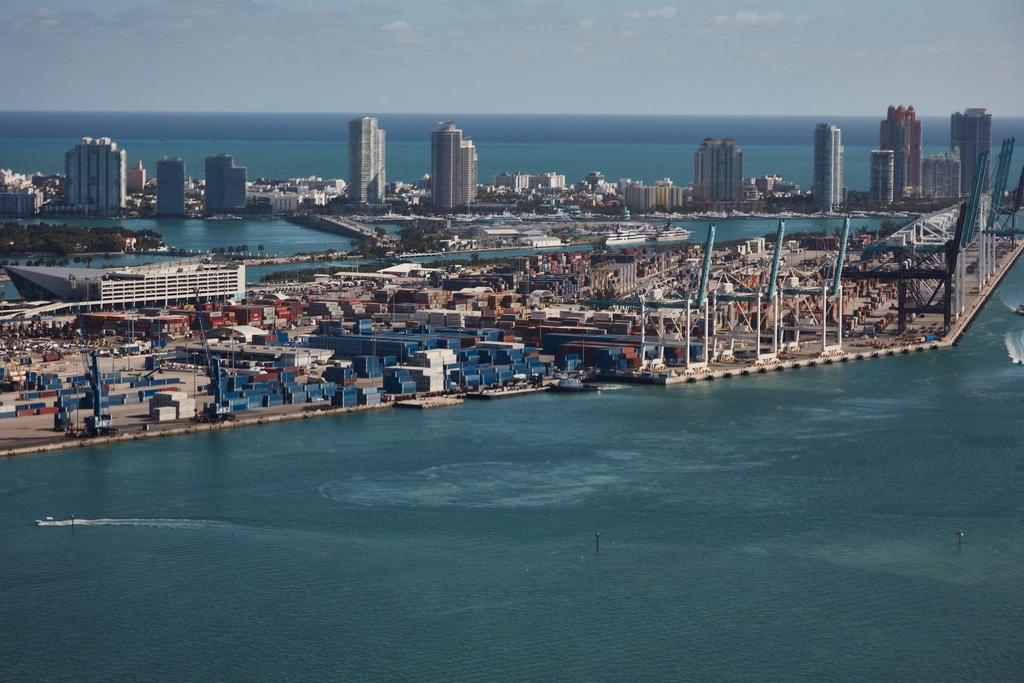
A container is to software what a shipping container is to cargo: a standard box that any ship, crane, or truck can handle without caring what is inside.
Containers vs Virtual Machines
People often confuse containers with virtual machines. Both provide isolation, but they work very differently.
- Virtual machines virtualize an entire operating system, including its own kernel. They are heavy — often gigabytes in size — and slow to start.
- Containers share the host machine’s kernel and isolate only the application layer. They are lightweight — often just megabytes — and start in seconds.
This efficiency is why you can run dozens of containers on a single machine where you might only fit a handful of virtual machines. Containers give you most of the isolation benefits at a fraction of the overhead.
Core Concepts: Images, Containers, and Registries
Three terms form the foundation of Docker.
- Image — a read-only blueprint that defines what goes into a container. Think of it as a snapshot or template.
- Container — a running instance of an image. You can start many containers from the same image.
- Registry — a place to store and share images. Docker Hub is the most popular public registry.
The mental model is simple: you build an image, then run it to create containers, and push/pull images to and from registries to share them.
Running Your First Container
Once Docker is installed, you can run a container with a single command. This pulls the official Nginx web server image and runs it:
docker run -d -p 8080:80 nginxBreaking that down: -d runs it in the background (detached), and -p 8080:80 maps port 8080 on your machine to port 80 inside the container. Visit http://localhost:8080 and you will see Nginx running — without installing Nginx directly on your system.
Useful everyday commands:
docker ps            # list running containers
docker images        # list downloaded images
docker stop <id>     # stop a container
docker rm <id>       # remove a container
docker logs <id>     # view a container's logs
Building Your Own Image with a Dockerfile
A Dockerfile is a text file with step-by-step instructions for building an image. Here is a simple example for a Python application:
FROM python:3.12-slim

WORKDIR /app

COPY requirements.txt .
RUN pip install --no-cache-dir -r requirements.txt

COPY . .

EXPOSE 5000
CMD ["python", "app.py"]
Each line is a layer: start from an official Python base image, set a working directory, install dependencies, copy your code, and define the startup command. Build and run it with:
docker build -t my-app .
docker run -p 5000:5000 my-app
Ordering matters for speed: copy and install dependencies before copying the rest of your code, so Docker can cache the dependency layer and rebuild faster when only your code changes.
Managing Multiple Containers with Docker Compose
Real applications usually need more than one container — for example, a web app plus a database. Docker Compose lets you define and run multi-container setups with a single YAML file.
services:
  web:
    build: .
    ports:
      - "5000:5000"
    depends_on:
      - db
  db:
    image: postgres:16
    environment:
      POSTGRES_PASSWORD: secret
Then bring the whole stack up with one command:
docker compose up -dCompose is a game-changer for local development because it turns a complex environment into something anyone on your team can start instantly.
Data Persistence with Volumes
Containers are ephemeral by design — when you remove one, its internal data disappears. That is fine for stateless apps, but databases need their data to survive. Volumes solve this by storing data outside the container’s writable layer.
docker run -v mydata:/var/lib/postgresql/data postgres:16The named volume mydata persists even if you delete and recreate the container. Always use volumes for any data you cannot afford to lose.
How Container Networking Works
One of the first things that confuses beginners is how containers talk to each other and to the outside world. By default, Docker gives each container its own isolated network, and you explicitly decide what to expose.
- Port mapping — the
-p host:containerflag connects a port on your machine to a port inside the container, making a service reachable from your browser. - Bridge networks — containers on the same custom network can reach each other by name, which is how a web container finds its database in Compose.
- Isolation — containers not sharing a network cannot see each other, which is a useful security default.
In a Compose setup, containers automatically join a shared network and can refer to each other using the service name as a hostname. That is why the earlier example could connect to the database simply as db — no IP addresses required. Understanding this makes multi-container applications far less mysterious.
Understanding the Container Lifecycle
Containers move through a predictable set of states, and knowing them helps you debug when something goes wrong. A container is created from an image, runs while its main process is alive, and stops when that process exits. This last point trips up beginners constantly: a container lives only as long as its primary command runs. If that command finishes or crashes, the container stops.
docker ps -a          # show all containers, including stopped ones
docker start <id>     # restart a stopped container
docker exec -it <id> bash   # open a shell inside a running container
docker inspect <id>   # view detailed configuration and state
The docker exec command is especially valuable — it lets you step inside a running container to look around, check files, and diagnose issues, much like connecting to a remote server. When a container keeps exiting unexpectedly, docker logs almost always reveals why.
Understanding Image Layers and Build Caching
Docker images are built in layers, and understanding this is the single biggest key to writing fast, efficient Dockerfiles. Each instruction in a Dockerfile — FROM, COPY, RUN, and so on — creates a new layer stacked on top of the previous ones. Docker caches these layers, and on a rebuild it reuses every layer up to the first one that changed, only re-running the instructions after that point.
This is why the ordering of instructions matters so much. Consider the Python example from earlier: copying requirements.txt and installing dependencies before copying your application code means that as long as your dependencies do not change, Docker reuses the cached install layer on every rebuild — even when you have edited your source code a hundred times. Reverse the order and every code change forces a full, slow reinstall of all dependencies.
# Good: dependencies cached separately from code
COPY requirements.txt .
RUN pip install --no-cache-dir -r requirements.txt
COPY . .
A related technique is the multi-stage build, where you use one stage to compile or build your application and a second, clean stage to hold only the finished result. This keeps build tools out of your final image, producing something much smaller and more secure. You do not need multi-stage builds on day one, but knowing they exist explains how production images stay lean.
FROM node:20 AS build
WORKDIR /app
COPY . .
RUN npm ci && npm run build

FROM nginx:alpine
COPY --from=build /app/dist /usr/share/nginx/html
Debugging When Containers Misbehave
Containers fail in a handful of predictable ways, and a small toolkit of commands resolves most of them. When a container will not stay running, your first move should always be to read its logs, because a crashing process almost always prints why it died before exiting.
docker logs <id>          # why did it exit?
docker exec -it <id> sh   # look around inside a running container
docker inspect <id>       # full configuration and state
Common culprits include a typo in the startup command, a missing environment variable, a port already in use on the host, or the application inside binding to localhost instead of 0.0.0.0 — a subtle mistake that makes a service unreachable from outside the container even though it runs fine within it. When a build fails, read the output carefully: Docker tells you exactly which instruction failed and why. Resist the urge to randomly change things; the error message almost always points straight at the problem. Treating containers as disposable also helps — if one is in a strange state, removing it and starting fresh is often faster than untangling it, which is the whole point of container immutability.
Best Practices for Beginners
- Use official base images — they are maintained, secure, and well-documented.
- Keep images small — use slim or alpine base images and clean up caches to reduce size.
- Use a .dockerignore file — exclude unnecessary files to speed up builds and shrink images.
- One process per container — containers are designed to do one thing well.
- Never hardcode secrets — pass sensitive values through environment variables or secret managers.
Frequently Asked Questions
Is Docker hard to learn? The basics are approachable in a day. You can run containers and write a simple Dockerfile quickly, then deepen your knowledge as your needs grow.
Do I need Docker as a beginner developer? It is increasingly expected in professional environments. Learning it early makes you more employable and simplifies running databases and services locally.
What is the difference between Docker and Kubernetes? Docker runs individual containers; Kubernetes orchestrates many containers across many machines at scale. Learn Docker first, then Kubernetes if you need large-scale orchestration.
Does Docker work on Windows and Mac? Yes. Docker Desktop provides a smooth experience on both, running Linux containers through a lightweight virtual machine behind the scenes.
Getting Started Today
Docker removes an entire class of environment headaches and is now a standard skill for developers. Install Docker Desktop, run a container, write a small Dockerfile, and try Compose with a database. Within a weekend of hands-on practice, you will wonder how you ever developed without it.
Ready to level up? Read our guides on Kubernetes, PostgreSQL, and building a SaaS product — and subscribe to the free AmritSparsha newsletter for weekly, practical lessons on modern development and DevOps.
Enjoyed this article?
Get weekly AI & business insights — free every Sunday.


